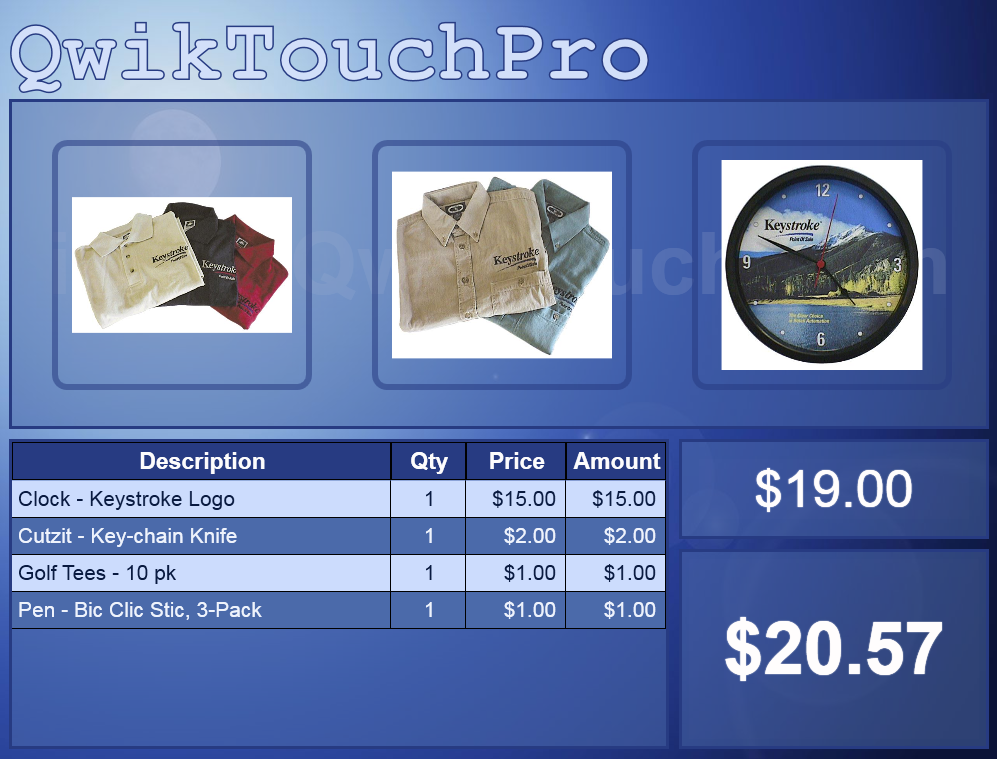
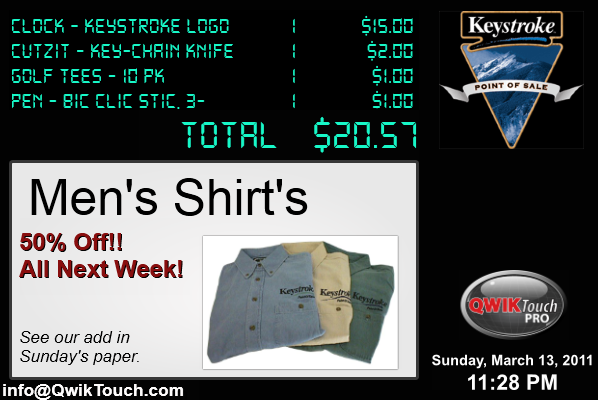
This 15 minute video walks through creating a simple Keystrok customer display in QwikTouchPro.
A customer display is a template that displays real-time sales information as it is entered into Keystrokes. Customer Displays can also display advertising and might be run on a second monitor or other remote display where the customer can see them.
The steps to create a Customer Display are detailed in the Video, but they are –
o Enable the Dataport in KeystrokePOS
o Create a Datasource in the QwikTouchPro Editor
§ A configuration file that points to the Keystroke Dataport
o Add (and Bind) Text controls for the invoice data
o Add (and configure) a Datagrid to display the line items
The Customer Display created in this video very basic. Your actual customer display can contain media (Images, Videos, Flash Videos, Web Pages) as well as dynamic advertising and advanced macros.
Your customer display could, for example, display different information depending on the current sales invoice -
· Show different customer displays to different customers
o Walk-ins can see a different Customer Display than your regular customers
o Customers could be flagged in your Keystroke Database to allow for more customized displays
§ E.g. Mark a Customer a “GoldClub” member and show them a fancy golden template with specific advertising
· Display a message (or Template, or Sub-Template) depending on the Invoice Total
· Display custom advertising/info about the department of the last item added to the sale
· Display an image of the last inventory item added to the sale
· Much More...
Datagrid Options
I didn’t talk about these in the video so here is a quick overview –
Scroll to Last Row on Update – This option scrolls the Datagrid to the bottom when an item is added. With a customer display you will probably want to show the bottom of the list of Line Items and not the top, so that the customer will always see the last item added.
Select Last Row on Update – This option selects the last row (but does not scroll to it) of the Datagrid when an item is added. You can use this to highlight the most recent item, and also to create macros.
Play Click Sound on Selection – This option will play the default click sound when an item on the Datagrid is selected (by touching it, or via the “Select Last Row on Update” option).
You might disable this option when using the “Select Last Row on Update” option so don’t hear the click sound as items are added to the sale.
The default click sound can be changed by right clicking the QwikTouchPro icon in the system right and choosing properties (requires that QwikTouchPro be running).
Here are a few sample Customer Displays from an earlier Blog Post.