Showing posts with label Keystroke. Show all posts

Tuesday, January 17, 2012

Video – QwikTouchPro and Keystroke with a Customer Display

This video demonstrates many new features of QwikTouchPro and how we can use them to tightly integrate with KeystrokePOS.

Link to YouTube for full screen
Some of the features demonstrated in this video include -
  • Multiple templates running on multiple monitors
  • Dynamic templates based off of the current sale
  • Data driven inventory lists
  • Buttons that respond differently to different inventory items
  • Electronic scale integration
  • Auto scrolling inventory lists
  • Restricting macros by Keystrok security level

Tuesday, December 27, 2011

Video – Using QwikTouchPro with an Electronic Scale

Introduced in v0.1.40 (Available upon request only)


Part 1 (5:58)
Creating a Datasource for the Scale
Displaying the weight from the scale in real-time


Wednesday, November 9, 2011

Video - Creating a Keystroke Customer Display


This 15 minute video walks through creating a simple Keystrok customer display in QwikTouchPro.

A customer display is a template that displays real-time sales information as it is entered into Keystrokes.  Customer Displays can also display advertising and might be run on a second monitor or other remote display where the customer can see them.

The steps to create a Customer Display are detailed in the Video, but they are –
o   Enable the Dataport in KeystrokePOS
o   Create a Datasource in the QwikTouchPro Editor
§  A configuration file that points to the Keystroke Dataport          
o   Add (and Bind) Text controls for the invoice data
o   Add (and configure) a Datagrid to display the line items


The Customer Display created in this video very basic.  Your actual customer display can contain media (Images, Videos, Flash Videos, Web Pages) as well as dynamic advertising and advanced macros.

Your customer display could, for example, display different information depending on the current sales invoice -
·         Show different customer displays to different customers
o   Walk-ins can see a different Customer Display than your regular customers
o   Customers could be flagged in your Keystroke Database to allow for more customized displays
§  E.g.  Mark a Customer a “GoldClub” member and show them a fancy golden template with specific advertising
·         Display a message (or Template, or Sub-Template) depending on the Invoice Total
·         Display custom advertising/info about the department of the last item added to the sale
·         Display an image of the last inventory item added to the sale
·         Much More...

Datagrid Options


I didn’t talk about these in the video so here is a quick overview –

Scroll to Last Row on Update – This option scrolls the Datagrid to the bottom when an item is added.  With a customer display you will probably want to show the bottom of the list of Line Items and not the top, so that the customer will always see the last item added.

Select Last Row on Update – This option selects the last row (but does not scroll to it) of the Datagrid when an item is added.   You can use this to highlight the most recent item, and also to create macros.

Play Click Sound on Selection – This option will play the default click sound when an item on the Datagrid is selected (by touching it, or via the “Select Last Row on Update” option).

You might disable this option when using the “Select Last Row on Update” option so don’t hear the click sound as items are added to the sale.

The default click sound can be changed by right clicking the QwikTouchPro icon in the system right and choosing properties (requires that QwikTouchPro be running).


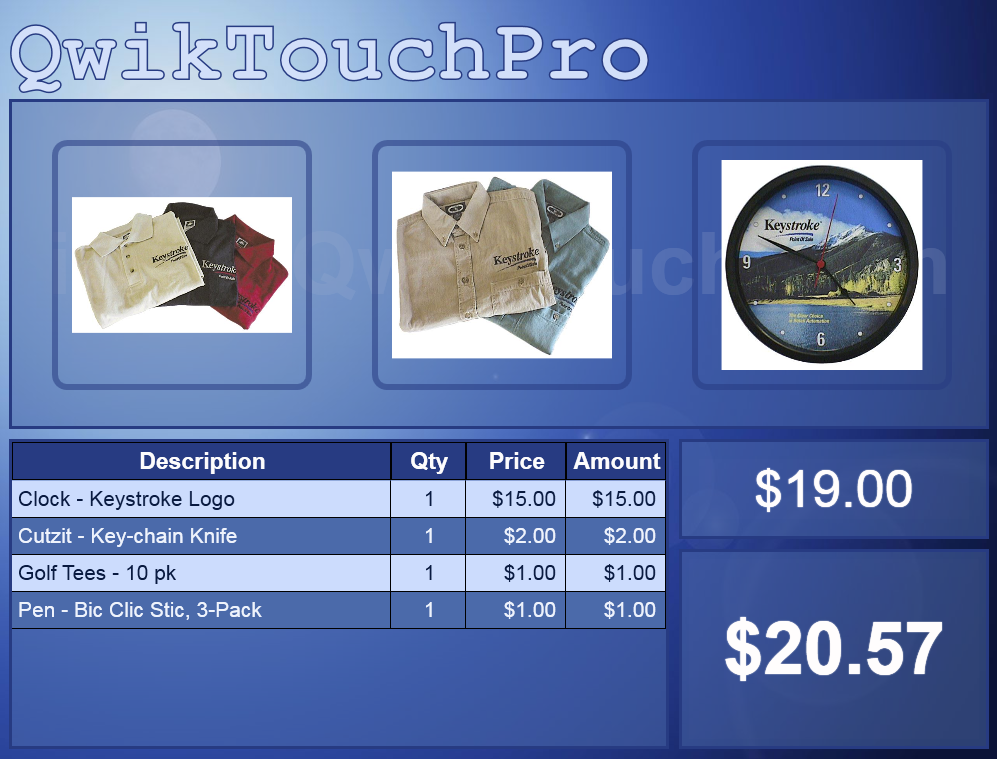
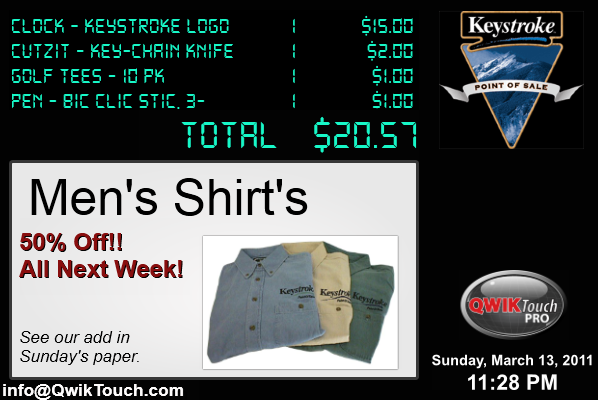
Here are a few sample Customer Displays from an earlier Blog Post.


Saturday, November 5, 2011

Video - Modifying the Standard16x11 Template

This 9 minute video demonstrates adding some keys to the Standard Template. 
The new keys will ring up a few promotional items in Keystrokes.


The latest Standard16x11 templates can be downloaded here

Thursday, November 3, 2011

Using KeystrokePOS with QwikTouchPro

This post will describe how to configure QwikTouchPro to work with KeystrokePOS.

The first step is to create a Program File that describes KeystrokePOS to QwikTouchPro.

See this post for information on creating programs http://qwiktouchpro.blogspot.com/2011/11/introduction-to-programs.html

Here is a sample Keystroke Configuration

Executable: Browse to Keystrok.exe
Switches: Optional, you can use an INI file instead

KSTemp File: This is only required if you want QwikTouchPro to be able to move and size your Keystroke window.

This file will be called DPx.tmp (where x is your register number) and it will be created in the current Keystroke Data Folder (c:\keystroke\Tutor in this example).

Use Existing Process From Task Manager:  We use this option to tell QwikTouchPro to try and find a running copy of Keystroke instead of opening a new one.

Process Name:  Keystrok
The Process Name is how QwikTouchPro finds the running copy of Keystroke, it looks at all running programs for one named “Keystrok”.

Show Window:  Run Keystroke in a window that the user can see and interact with.

Start/Restart on Activation:  This has no effect on Keystroke

Start Maximized:  We could start Keystroke full screen, but we will be using a “Move Program” Macro to precisely move and size it instead.

Wait for Exit:   This has not effect on Keystroke.


Once you have created and saved your Keystrok.qtp configuration file, you can use it in macros.


Making Changes
If you change the way Keystroke is configured you will need to edit and update the Keystrok.qtp file (though the Edit Program Button on the Data Tab).

e.g., if we wanted to change our sample configuration from the Tutor Folder to the Data Folder we would make the following changes:

The Switches need to be updated from /D TUTOR to /D DATA
The KSTemp file needs to be updated to c:\Keystroke\Data\DP1.TMP


Example Macros

Open Keystroke when the Template Loads
This macro will open a copy of Keystroke when this template loads.  Remember we can call “Open Program” as often as we would like without worrying about opening multiple copies of Keystroke.


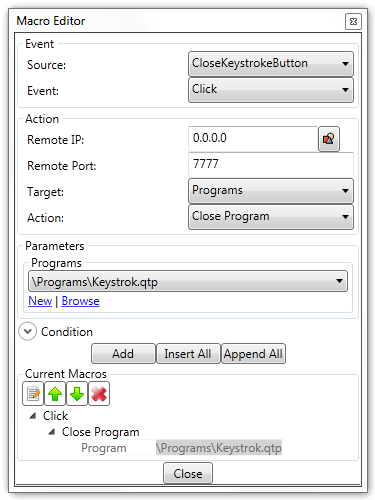
Close Keystroke when the users touches a Button
This macro will close Keystroke when the user touches a Button


Move Keystroke when the users touches a Button
This macro will move and size Keystroke when the user touches the button.  This macro requires a Program Window control be added to your template.  The Program Window control is how QwikTouchPro knows where and how to display Keystroke.


Trouble Shooting
Some common problems and possible solutions.

Problem:  A new copy of Keystroke opens every time the “Open Program – Keystroke” Macro is performed.
Solution:  Confirm the Process Name in the Program Setup is correct (should be Keystrok) and that “Use existing process from Task Manager” is checked.

Problem:  Error finding Keystroke Temp File
Solution:  Confirm that you have selected the correct DPx.TMP file.  You may have to examine your Keystroke [Data] folder (Data, Tutor etc…) to make sure there is a DPx.TMP file being created and that you are selecting the correct file.

Problem:  The “Move Program – Keystroke” Macro doesn’t do anything.
Solution:  Confirm that you have selected the correct DPx.TMP file.  You may have to examine your Keystroke [Data] folder to make sure there is a DPx.TMP file being created and that you are selecting the correct file.

Problem:  Keystrokes is open, but “Send Text” Macros are not working.
Solution:  QwikTouchPro sends commands to the Active Program.  Even though Keystroke may be visible, it may not be active (does not have the focus).

To correct this, you may have to add an additional Macro to “Move Program – Keystroke”.  The “Move Program” Macro will give Keystroke POS the focus as well as moving and sizing it.